rc_extra_seats
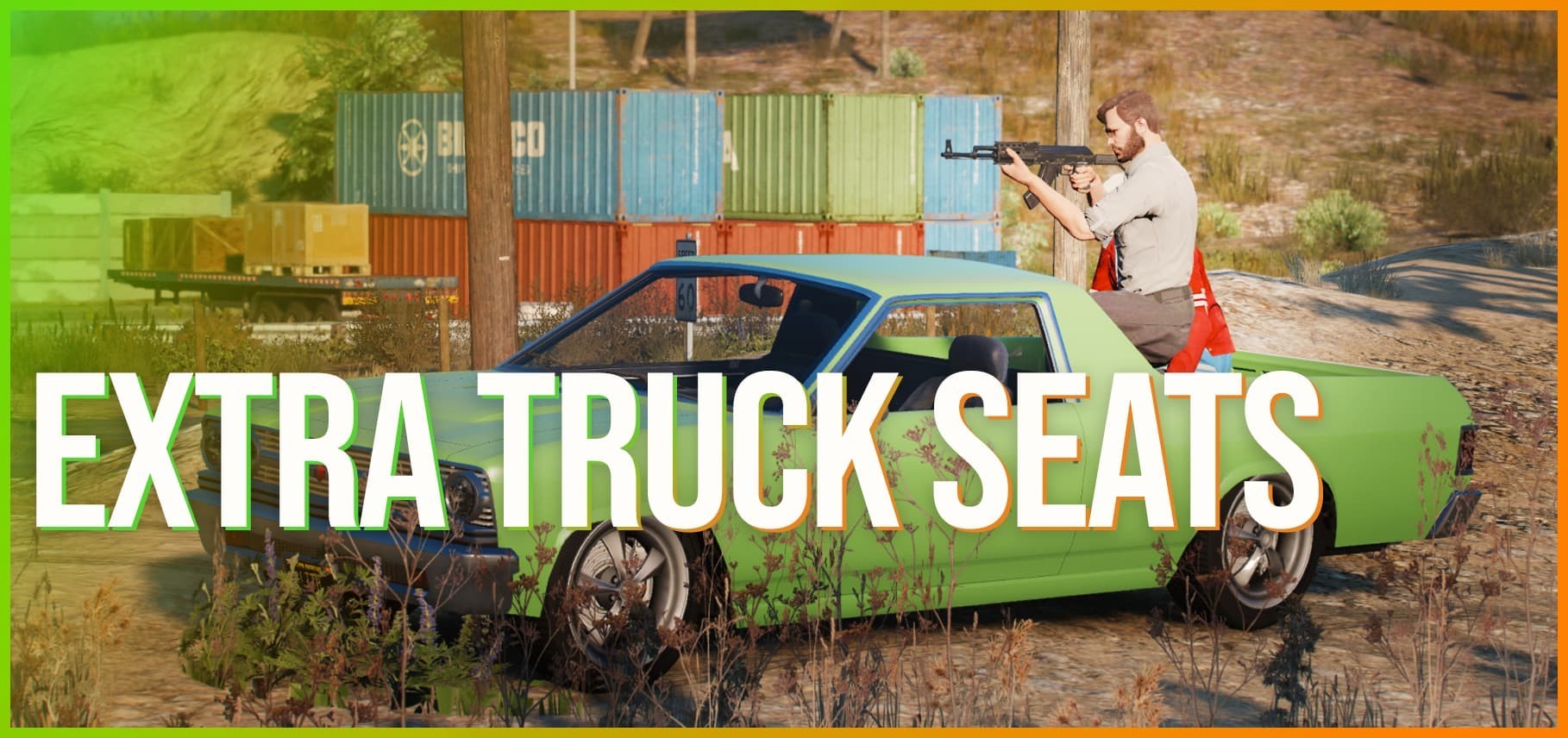
A FiveM resource that attaches players to configurable positions on a vehicle (cargo beds, flatbeds, industrial bodies, etc.) and treats them as passengers. Seat positions are defined per vehicle model in config.lua or produced by the in-game gizmo editor.
Documentation map
| Section | Use it for |
|---|---|
| Requirements | Server prerequisites, targeting system options |
| Installation | server.cfg setup, ACE permissions |
| First Seat Setup | Step-by-step walkthrough of placing your first seat with the editor |
| General Settings | config.lua options: targeting, door lock, collision eject |
| Seat Definitions | Schema and field reference for Config.pickupTruckModels |
| Seat Editor | Full keybind and command reference for the in-game gizmo editor |
| Admin Commands | /seatocclist, /seatfreeplayer, /seatfreeall |
| Sitting and Standing | Player-facing interaction |
| Editable Files | What you can and cannot modify |
| Server Exports / Client Exports | Programmatic API for other resources |
| Troubleshooting | Diagnostics for common failure modes |
How seat data is structured
Seat positions live in Config.pickupTruckModels keyed by uppercase model name. Each seat is one entry in a table:
Config.pickupTruckModels = {
    ['SANDKING'] = {
        { offset = { 0.1, -0.8, 1.0 }, boneName = 'seat_dside_r', detectRadius = 1.0 },
        { offset = { 0.8, -0.8, 1.0 }, boneName = 'seat_dside_r' },
    },
}
Field reference: see Seat Definitions.
You can write entries by hand, but the practical workflow is to produce them with the in-game gizmo editor and paste the output into config.lua.
Editor workflow — placing a seat with the gizmo
The editor is a frozen-freecam, mouse-driven gizmo. Open it next to a vehicle, place seats visually, export the result, paste it into config.lua.
1. Open the editor
Stand near (or aim at) the vehicle. Press N or type /seateditor in chat.
- You need the
rc_extra_seats.editorACE permission, or membership in a group that has thecommandACE (most admin groups already do). See Installation. - A scripted camera takes over and translucent preview peds spawn at any existing seat positions for the model.
2. Position the camera (fly mode)
The camera starts unfrozen — fly it into a useful viewpoint.
| Input | Action |
|---|---|
| Mouse | Look |
| W / S | Forward / back |
| A / D | Strafe |
| Shift | Faster |
| Alt | Slower |
3. Switch to edit mode
Press F to freeze the camera. The mouse cursor activates and the gizmo is now interactive.
4. Add or select a seat
| Input | Action |
|---|---|
| Insert | Add a new seat at the currently selected seat's position |
| Delete | Remove the selected seat |
| Tab | Cycle to next seat |
| Shift + Tab | Previous seat |
The gizmo (three arrows + a yellow ring) follows the selected seat.
5. Drag the gizmo to position the seat
| Handle | Drag effect |
|---|---|
| Red arrow | Move along vehicle X (right) |
| Green arrow | Move along vehicle Y (forward) |
| Blue arrow | Move along vehicle Z (up) |
| Yellow ring | Rotate the seated ped's heading (yaw) |
Click and hold a handle — it highlights — then drag. The preview ped follows the gizmo in real time.
6. Assign the bone
Press B to overlay all vehicle bones as magenta dots. Hover one to see its name. Click it to attach the selected seat to that bone.
For pickup beds the common choices are seat_dside_r or seat_pside_r. For vehicles without rear seat bones (skidsteers, semis), use chassis or chassis_dummy.
Press B again to hide the bone overlay.
7. Adjust the detect radius
The detect radius is the sphere around the seat where the "Press E to sit" prompt becomes available. The orange ring drawn around the seat is the current radius.
| Input | Effect |
|---|---|
| Scroll wheel | ±0.05 m |
| Shift + scroll wheel | ±0.25 m |
8. Optional: precise numeric input
Chat commands work while the editor is open. Use them when the gizmo isn't precise enough.
/seatset x 0.42        — set selected seat's X offset
/seatset yaw 174.84    — set selected seat's heading in degrees
/seatset radius 0.4    — set selected seat's detect radius in meters
/seatbone seat_dside_f — assign a bone by name
/seatgoto 2            — switch to seat index 2
9. Undo
Press Z to undo the last change (up to 50 steps).
Applying the seat config
Two ways to push your changes back to players.
Path A — paste into config.lua (permanent)
This is what you want for a real, persistent change.
- While in the editor, press
](right bracket). The NUI export panel opens with a ready-to-paste Lua snippet. A copy is also written toseat_exports/<MODEL>_<YYYYMMDD_HHMMSS>.luaon the server disk. - Copy the snippet from the panel.
- Open
config.lua. InsideConfig.pickupTruckModels, find the entry for your model (or add a new one keyed by uppercase model name). - Replace the model's table contents with the pasted snippet, or merge if you only want to add some of the seats.
- Save
config.lua. - Restart the resource:
restart rc_extra_seatsin the server console.
Every client gets the new layout on the next resource start.
-- Example: pasted snippet inside Config.pickupTruckModels
['SANDKING'] = {
    { offset = { 0.10, -0.80, 1.00 }, boneName = 'seat_dside_r', detectRadius = 1.0 },
    { offset = { 0.80, -0.80, 1.00 }, boneName = 'seat_dside_r' },
    { offset = { 0.10, -2.40, 1.00 }, boneName = 'seat_dside_r' },
    { offset = { 0.80, -2.40, 1.00 }, boneName = 'seat_dside_r' },
},
Path B — live broadcast (temporary, for tuning)
While the editor is open, press [ (left bracket) to broadcast the in-memory seat config to every connected player immediately. No restart needed.
This is useful for tuning with other players watching, but the change does not survive a resource restart. For a permanent change you must still complete Path A and paste into config.lua.
Closing the editor
Press N again, or type /seatedclose. The freecam releases, preview peds despawn, and you return to your ped at its pre-editor location.
How occupancy is tracked
The server is the authoritative source of who is sitting where. Seat claims are arbitrated server-side and replicated via the trunkSeats entity statebag. A periodic self-heal audit clears stale records when a vehicle is removed, a player disconnects, or the resource restarts. See Server Exports — Occupancy class for the data model.