Yards
A yard is one mowing location: a centre point, a radius, a spot for the customer, and any no-mow zones. When a player starts a job the script picks a random enabled yard, so the more yards you have the less repetitive the job feels.
Yards live in the database, not in a config file. Everything below takes effect immediately — including for players already working.
Open the editor with /mower_edit (ACE rc_mower.edit).
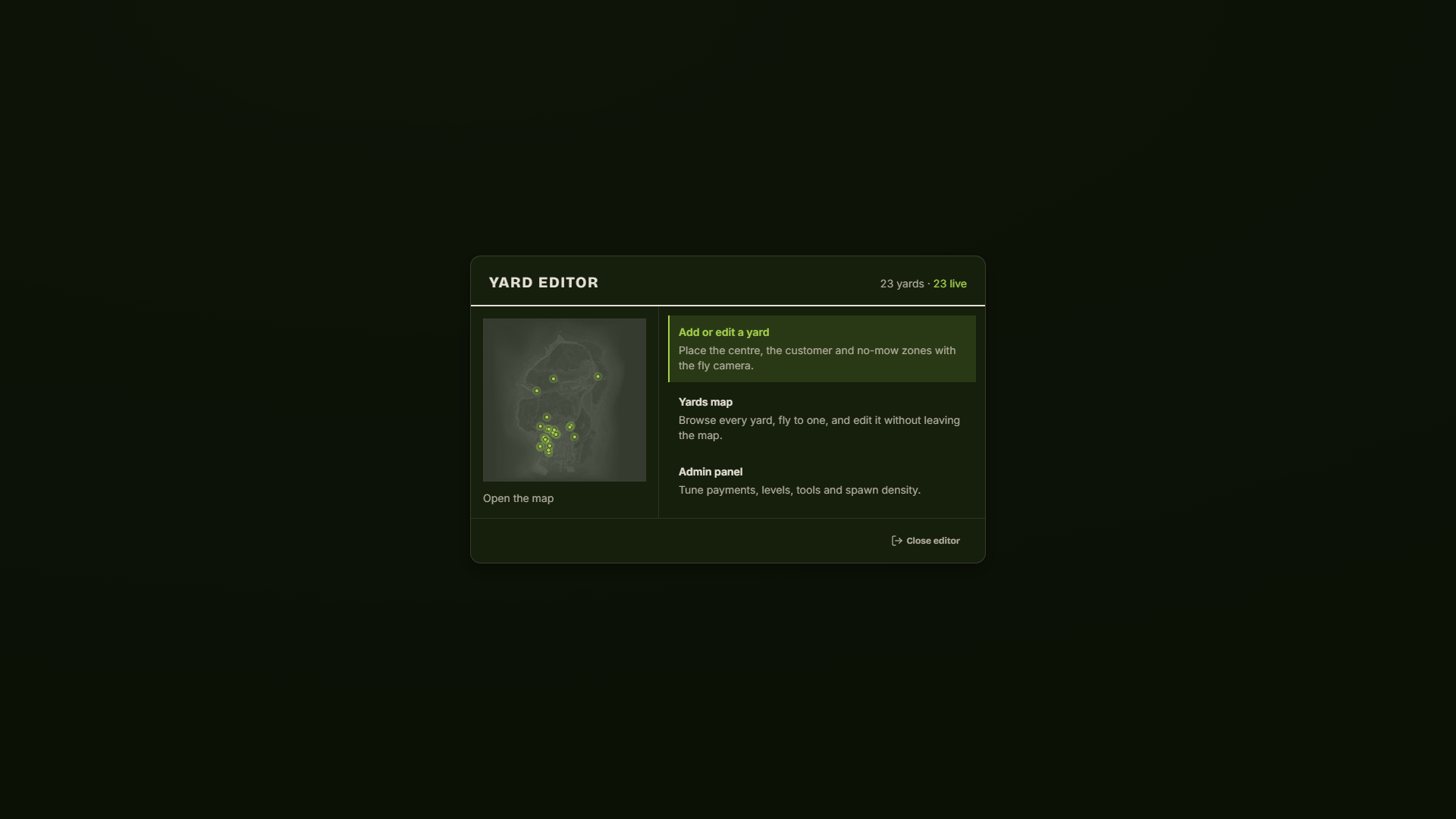
The hub shows how many yards you have and how many are live. The map preview on the left is also a button — click it to open the full map.
The map
Yards map shows every yard on the Los Santos map with the list beside it.
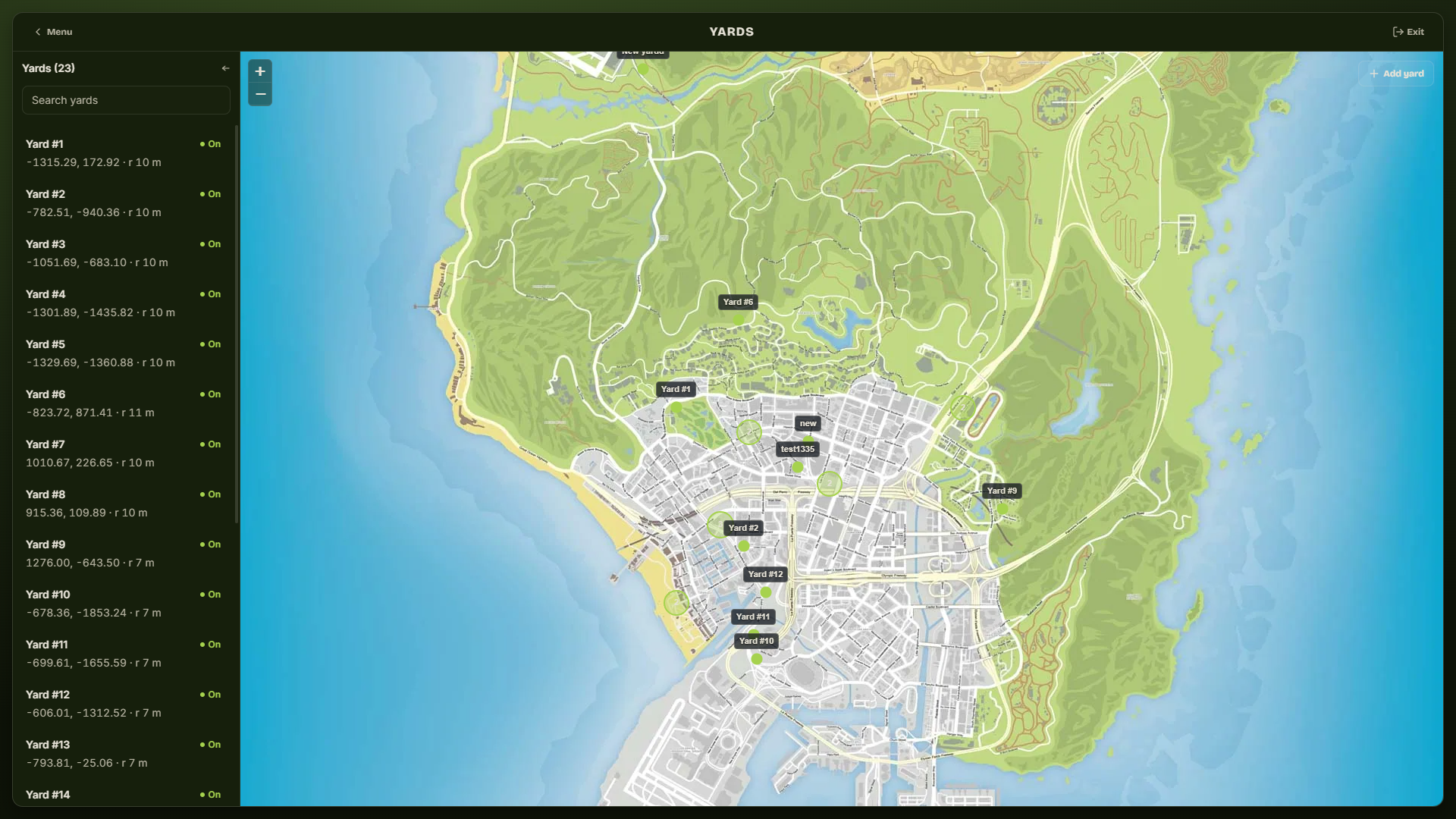
| Action | Where |
|---|---|
| Find a yard | Search box, by name |
| See its coordinates and radius | Under each name in the list |
| Turn a yard on or off | The On / Off switch on its row |
| Rename it | Rename — the one change that does not need the world |
| Edit it | Edit — closes the map and takes you to the yard (below) |
| Add a new one | Add yard, top right |
Clicking a yard — in the list or on the map — opens its card.
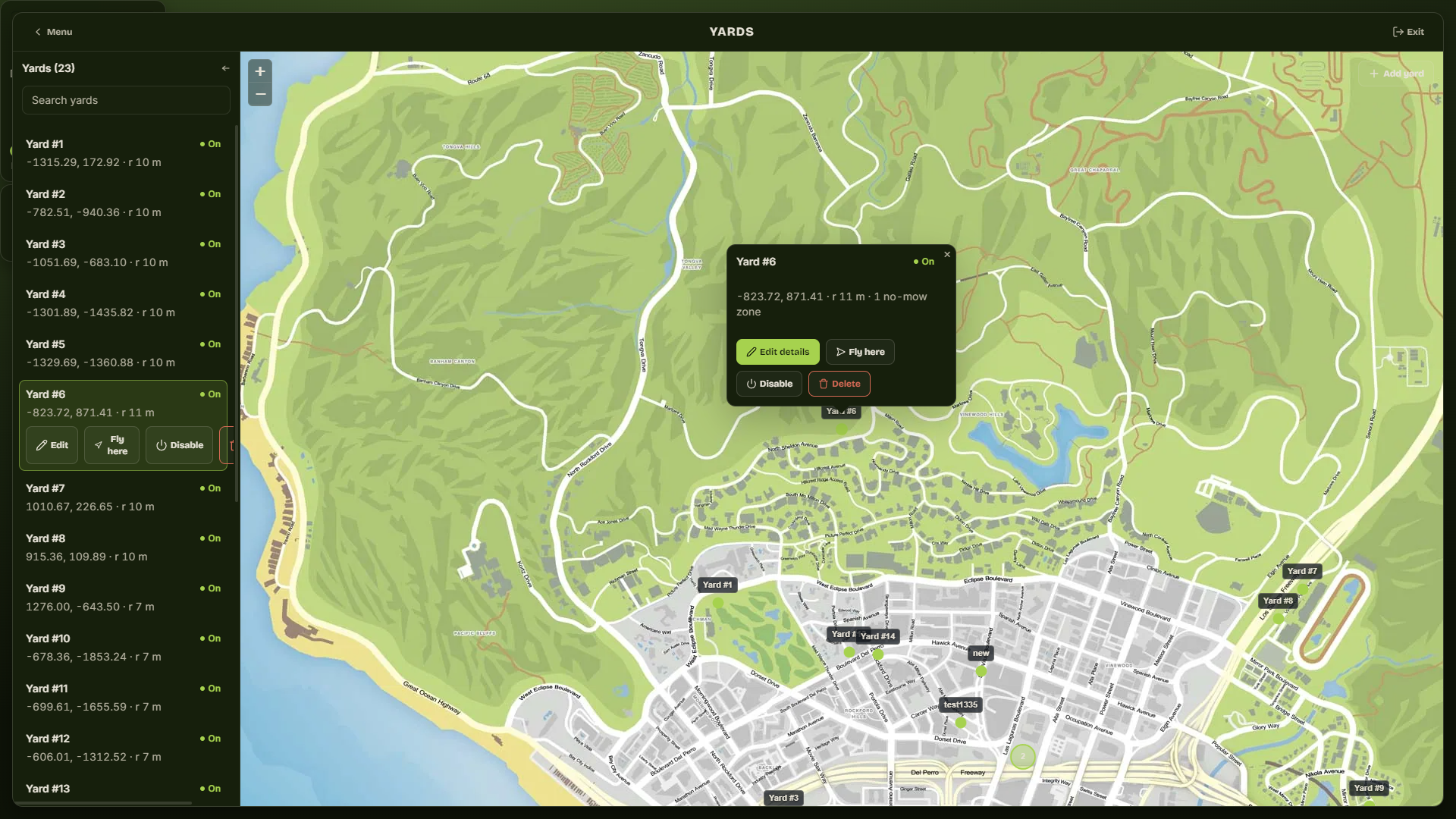
| Button | Does |
|---|---|
| Edit yard | Takes you to the yard and opens the placement rail on it |
| Rename | Renames it on the spot, without leaving the map |
| Disable | Removes it from the rotation, keeps the row |
| Delete | Removes it permanently |
Disabling is the safe way to retire a location you might want back.
Editing a yard from the map
Edit yard works exactly like Add yard, except it loads the yard you picked instead of starting an empty one: the map closes, your character flies out to it, and the placement rail takes over with the centre, customer, radius and no-mow zones already in place. Nothing about a yard is edited on top of the map, because everything except its name is a thing you have to stand in front of to judge.
It refuses while you are in a vehicle. It remembers where you were when you opened the editor: only Save and return or Return takes you back — every other way out leaves you at the yard.
Creating or editing a yard
Add or edit a yard opens the placement rail with a fly camera.
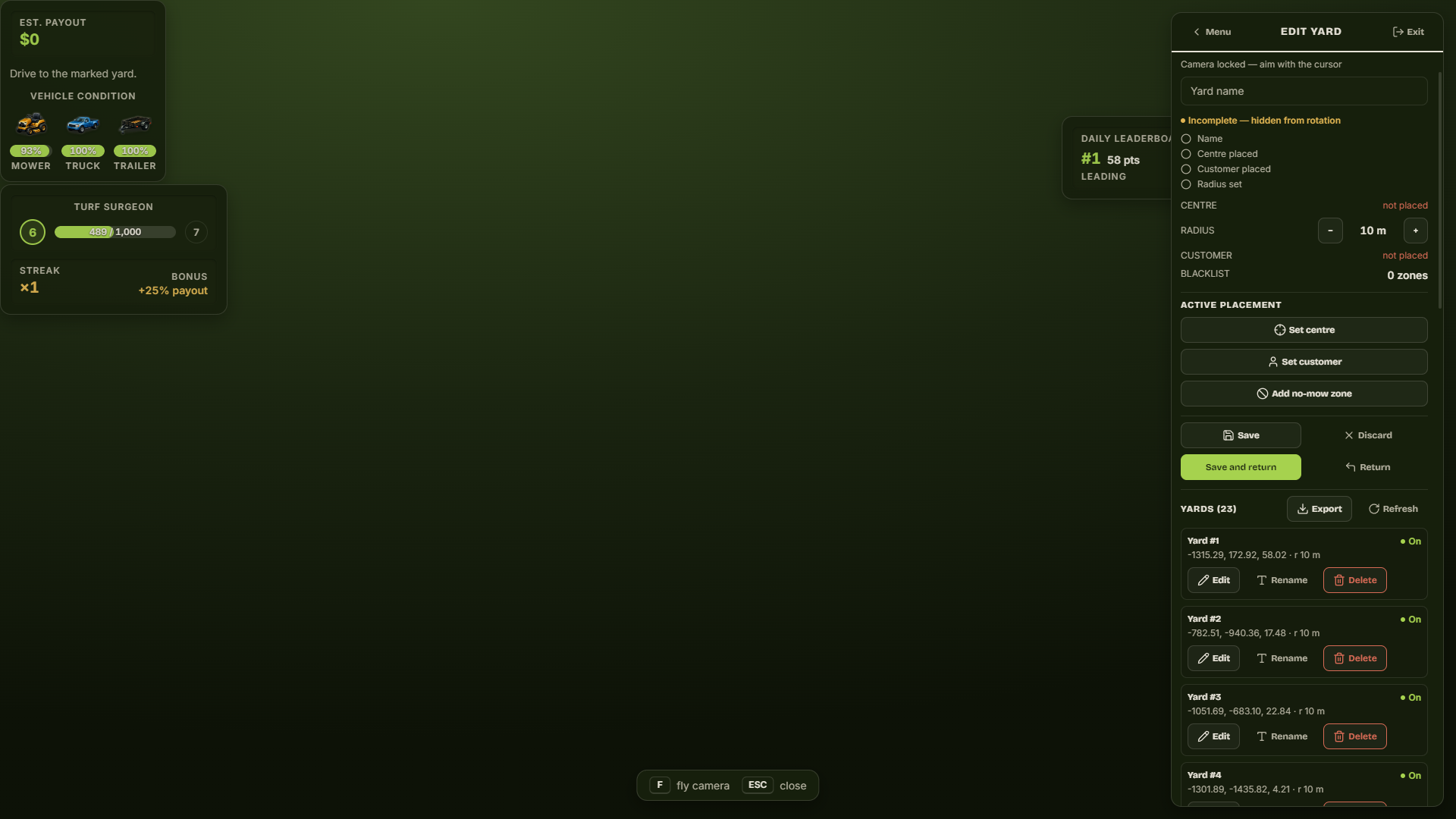
The checklist at the top is the yard's readiness. A yard missing any of these is marked Incomplete — hidden from rotation and will never be picked for a job, so a half-finished yard can never break someone's shift.
| Step | How |
|---|---|
| Name | Type it in the Yard name box |
| Centre | Set centre, aim, then confirm with LMB |
| Radius | Scroll wheel while placing, or the − / + next to RADIUS |
| Customer | Set customer, aim at where the customer should stand, confirm |
| No-mow zones | Add no-mow zone, aim, scroll for its size, confirm. Repeat for as many as you need |
Camera controls are shown at the bottom of the screen while you work.
| Key | Action |
|---|---|
| F | Switch between locked camera (aim with the view) and free flight (WASD, Q/E, Shift fast, Ctrl slow) |
| LMB | Confirm the placement |
| Scroll | Grow / shrink the radius or zone |
| Backspace | Cancel the current placement |
| ESC | Close the editor |
Key names come from config.lua → Config.editorKeys; if you rebind them there the on-screen hints follow.
Saving
| Button | What it does |
|---|---|
| Save | Writes the yard and stays in the editor |
| Save and return | Writes it and takes you back to where you opened the editor |
| Discard | Throws the draft away |
| Return | Leaves without saving and takes you back |
Editing an existing yard updates that row in place — it does not create a duplicate.
Things worth knowing
- Radius is a flat circle on the ground, not a sphere. Height does not matter to grass spawning or to a no-mow zone.
- Grass avoids concrete. Patches will not spawn on hard surfaces, so a yard drawn slightly wide is not a problem — but a yard centred on a car park will spawn almost nothing.
- Radius drives workload. Patch count is density × area, so doubling the radius roughly quadruples the job. Adjust density in Admin panel → The Yard rather than fighting it with radius.
- Coordinates are stored to two decimals, so the map, the readouts and the database always agree.
- Export on the rail dumps your yards as Lua — useful as a backup, or to copy a set of locations to another server.